
Evoto Automatic Retouching Setup Help
Evoto AI Setup For Automatic Retouching
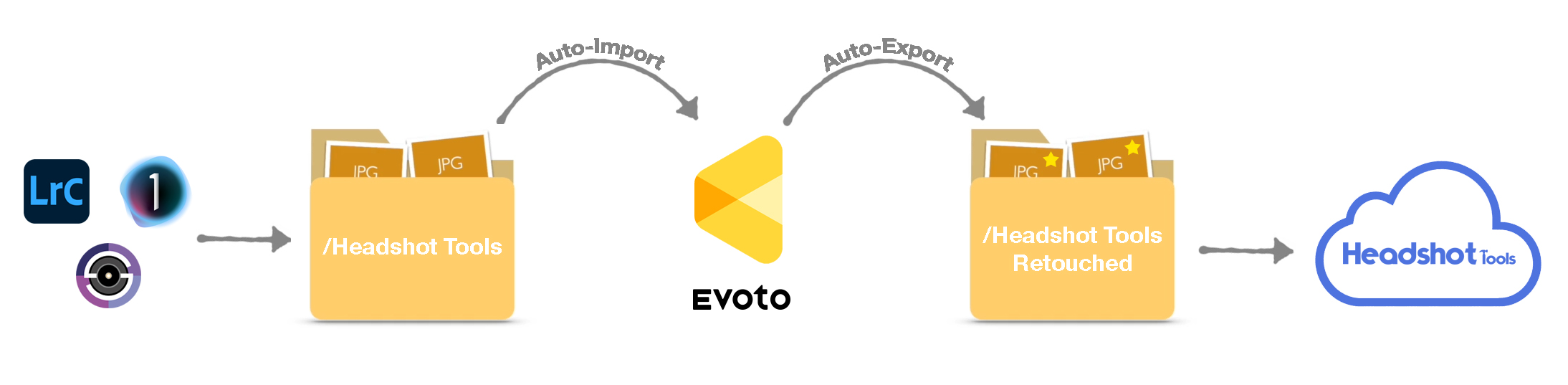
With the steps in this guide, you can utilize your existing tethering software, Headshot Tools and the most powerful AI retouching software in the world, Evoto AI, to deliver retouching instantly to your participant’s as you shoot! No selections, hand retouching or after the job work!
Warning - Although this guide is simple, it is intended for experienced users of Headshot Tools and Evoto AI. We recommend getting the basic Headshot Tools setup complete and some practice in on all the elements of each software before you start this guide.
- See our Quick Start Guide for more info on Headshot Tools.
- See Evoto AI for more info on how retouching works.
Prerequisite #1 – Evoto Connection Update
These steps will allow you to utilize your existing tethering software in the exact same manner you are used to. However, you will also need to have an Evoto AI account and their software open at the same time. Evoto also contains an unsupported tethering module, but this tethering functionality can interfere with your existing tethering software. To prevent any “fighting” between each tethering software, we recommend turning off Evoto’s automatic tethering connection. To do this:- Open Evoto AI.
- Navigate to the main “Settings” or “Preferences” menu.
- Click the “Preferences” section and turn off the “Auto-connect to camera” switch.
- Click “OK”.
Prerequisite #2 – Headshot Tools Setup
The remainder of this guide assumes you have a Headshot Tools Job and tethering configuration successfully setup and working. For example, you’re able to Double-Click, Shoot and Export participants just like normal. If you haven’t set up your tethering software and a Headshot Tools job yet, please follow the below guides before continuing:
Tethering Setup Guides -
Headshot Tools Guides -
Headshot Tools Guides -
Step 1 – Evoto Import Setup
This guide utilizes a feature of Evoto called a “Watched Folder”. Evoto will “watch” any folder you pick for new images. When new images are detected, Evoto will automatically import those images and instantly apply a retouching preset to them. This first step tells Evoto which folder to watch and which retouching preset to apply. To set this up:- Open Evoto AI.
- Create a new project and give it a name similar to your Headshot Tools job name.
- Click the blue “Auto Import & Export” label towards the bottom of the screen.
-
Click the “Watched Folder” box in the top right and select the folder where your tethering software currently exports JPEG images. If you followed our setup guides, this is the “Headshot Tools” folder:
/<Your Session Folder>/Output/Headshot Tools - Un-bubble “Include subfolders”.
- Make sure “JPEG” is the only file type selected.
- Choose the retouching preset you would like applied to all automatically imported images.
- Set the “Preview Image Settings” option to “Show Newest Import Image”.
- And finally, click the “Start Auto Import” button.
Step 2 – Evoto Export Setup
The prior step was all about automatically importing images. We now need to automatically export images so we can eventually send them to our participant’s galleries via Headshot Tools. To do this:- Set the “Auto Export Interval” to “10 s”.
- Now click the gear icon at the bottom of the screen, to the right of the "Start Auto Export" button.
-
Click the export location’s “Path” box and navigate to your session folder, then the Output folder. Here, alongside your Headshot Tools folder, we’re going to create a new folder titled “Headshot Tools Retouched”. After creating this folder, please select the “Headshot Tools Retouched” folder:
/<Your Session Folder>/Output/Headshot Tools Retouched - Under the “Directory Preferences” drop down, select “Export All Images Into The Same Destination”.
- Scroll down the menu to the “File Settings” section and set the “Image Format” to “JPG”.
-
Bubble in “Percentage” and type 80% into the text box.
Note: you may be tempted to set this number higher, and you can if you like, however, we have found that with 80%, the files appearance is imperceptible vs higher numbers and typically makes the files 50-75% smaller! - Click the "Export" button to save your settings and start the auto exporting process.
- It’s typical that an Evoto warning will pop up here. Please review it and choose the appropriate option to continue.
Step 3 – Headshot Tools Automatic Uploading Setup
Now that our images are being imported into Evoto, retouched and exported, we need to get them uploaded to Headshot Tools for our participants. To do this:- Navigate to your Headshot Tools job and launch the Auto Upload Utility. If you already have your Auto Upload Utility open or running, please refresh the page to reset it.
- Click the big green “Select Images Folder…” button.
-
Now we need to select the “Headshot Tools Retouched” folder from the prior section. This is the folder where your final retouched JPEG images are being placed by Evoto:
/<Your Session Folder>/Output/Headshot Tools Retouched
You can now operate your job just like normal, double-clicking, shooting, and exporting! Participant’s images will be automatically imported into Evoto, retouched, exported, and uploaded into Headshot Tools!
Important Notes About This Process
While this process is effective at delivering retouched images on the fly, there are a couple of strange behaviors to be aware of. Many of these items have workarounds and some we believe are bugs that will be addressed by Evoto in the future.Single Imports –
Imagine a situation where you entirely photograph participant John Smith. You perform the normal double-click, shoot, export process, he gets his images and all is good! However, John later comes back and asks if you could up the exposure of one of his images. You navigate to your tethering software, adjust his image and re-export. You would typically expect that re-exporting John’s image would replace the existing un-retouched image and that file would be re-imported into Evoto so it could be retouched again, exported and uploaded to Headshot Tools. Unfortunately, this is not the case.
Evoto’s current Auto Import feature will only ever import a file one single time.
If you wish to re-export images from your tethering software, you may have to utilize the “Add Suffix” feature of your tethering software such that repeated exports create a new filename that will be auto-imported by Evoto.
Folder Creation –
In the latest version of Evoto there is a bug that creates a subfolder within your export folder when choosing your export path. For example:
- You choose your retouched file export location path as seen in Step 2 – Item 3 above.
-
You typically pick the below folder in this step:
/<Your Session Folder>/Output/Headshot Tools Retouched
- Evoto will select the folder correctly, however it will also create a folder within your “Headshot Tools Retouched” folder with the same name as the “Watched Folder” you selected in Step 1 – Item 4.
Existing Files Do Not Import –
The Evoto auto-import process will only import photos placed into the “Watched Folder” after the auto import process is started. Any images that exist in your “Watched Folder” before you start the process will not be import or processed by Evoto automatically.
If you wish to have images that exist within the folder processed, you’ll need to:
- Move the images out of the “Watched Folder” to a different folder.
- Move the images from the different folder back into the “Watched Folder”.
Common Issues / Questions
I have questions about Evoto!
You can receive Evoto support here. They also have a very active facebook group here.