
Adobe Lightroom Classic / Smart Shooter 6 Setup Help
Adobe Lightroom Classic / Smart Shooter 6 Setup
While our main recommendation for tethering software is Capture One, we also support Adobe Lightroom Classic via a third-party application Tether Tools Smart Shooter. Many photographers have found Adobe Lightroom Classic’s tethering experience to be frustrating and prone to error. However, by combining Lightroom Classic with Smart Shooter, you not only increase the reliability but also gain the features needed to work with Headshot Tools.
Setting Up Smart Shooter 6
The below steps will get Smart Shooter 6 set up and your workspace all organized. You'll later set up Adobe Lightroom Classic to integrate with this configuration.Step 1 - Setting Up Your Folders
Create the below folder structure anywhere you normally organize your images. You'll be creating a total of 5 folders. Please note that this is a hierarchy. For example, folders under a folder are contained within the higher folder.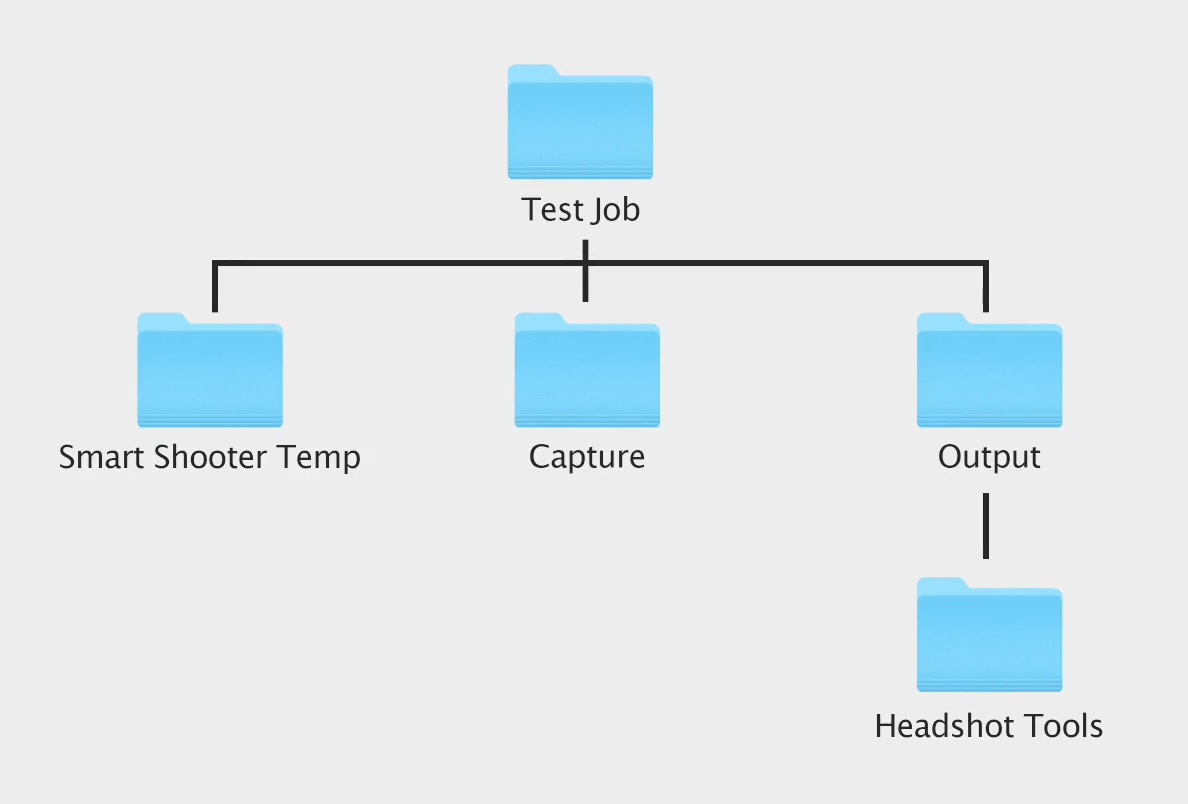
Folder Descriptions:
Test Job - This is the root folder that will contain everything for this job, including your Lightroom Catalog later on.
Smart Shooter Temp - Smart Shooter will utilize this folder temporarily while you shoot. You won't interact with this folder outside of setting up.
Capture - This is where your tethered RAW images will be stored once ingested into your computer.
Output - This folder is where you'll place sub-folders of exported jpegs. It's helpful to utilize sub-folders within this folder so you can separate proofs, retouches or different crops later.
Headshot Tools - This folder is where you'll place your exported jpeg images. This is also the folder you'll select later when you upload images.
Smart Shooter Temp - Smart Shooter will utilize this folder temporarily while you shoot. You won't interact with this folder outside of setting up.
Capture - This is where your tethered RAW images will be stored once ingested into your computer.
Output - This folder is where you'll place sub-folders of exported jpegs. It's helpful to utilize sub-folders within this folder so you can separate proofs, retouches or different crops later.
Headshot Tools - This folder is where you'll place your exported jpeg images. This is also the folder you'll select later when you upload images.
Step 2 - Configure Your Smart Shooter Session
Open Smart Shooter 6 and navigate to your “Session” tab. If you don’t see a “Session” tab, click “View” and check “Session”, then the tab will appear.Now click the “Gear” within the “Session” tab and ensure that the “Unique Tag” checkbox is checked.
Step 3 - Setting Up Your Smart Shooter Temp Folder
We now need to give Smart Shooter a folder to temporarily hold some RAW images while you shoot. When you shoot tethered, images will briefly appear in this folder. However, later, these files will be moved into Lightroom out of this folder automatically.To set up your Smart Shooter Temp folder:
- On a Mac, click “Smart Shooter 6” then “Preferences”
- In Windows, click “File” then “Options”
Step 4 - Creating Your Smart Shooter Naming Policy
We now need to set up how your files get named. Switch to the “Name Policy” tab and clear out the “Filename Expression” textbox. Now enter the following tokens:[U][S4]
This will name your files with whatever text is contained within your clipboard, followed by a 4-digit counter.
Now click "OK" and leave Smart Shooter running.
You're now ready to move on to setting up Lightroom Classic! See below for your next steps!
Setting Up Lightroom Classic
With Smart Shooter all setup, it's time to move on to making it work with Lightroom. Follow the below steps to get started.Step 1 - Create A New Catalog
Open Lightroom Classic and create a new Catalog by clicking “File” then “New Catalog”. Give your catalog a name like “Team Headshots” via the “Save As” text box, open your root Test Job folder, and click “Create”.NOTE: This step will create an additional folder within your “Test Job” folder titled with your catalog name. In our example above “Team Headshots”. This is expected and nothing to worry about. Simply continue the steps below.
Step 2 - Setting Up Auto Import From Smart Shooter 6
Here we'll set up Adobe Lightroom Classic to automatically load your Smart Shooter 6 tethered and correctly named images into the new catalog we just created, as you shoot!- Step 1 – In the top left corner of Lightroom, click “File”, then “Auto Import”, and “Auto Import Settings”.
- Step 2 – Check the box titled “Enable Auto Import”.
- Step 3 – Click the “Choose…” button next to the “Watched Folder” item. Here you select the Smart Shooter Temp folder we created earlier.
- Step 4 – In the destination group, click the “Choose…” button. Here you select the Capture folder we created earlier.
- Step 5 – Verify the “Subfolder Name” text box says “Auto Imported Photos”.
- Step 6 – Set the “File Naming” dropdown to “Filename”.
Step 3 - A Quick Test
With both Smart Shooter and Lightroom still running, plug your camera into your computer and switch it on.Snap a couple test photos to see your images pop into Smart Shooter and then Lightroom. It may take a few seconds for your images to show in Lightroom. Lightroom continually checks for new images every few seconds and imports any new images.
What's happening here is Smart Shooter is placing RAW images into your Smart Shooter Temp folder. The Auto Import Step we just completed is then moving those RAW images from your Smart Shooter Temp folder, into your Capture folder and also loading them into Lightroom.
Not seeing your images show up or maybe they're named strangely? Smart Shooter's naming policy is set up to name your files with what's in your Clipboard at the time of capture. Later in the process Headshot Tools will control this for you. However, for this quick test, try copying this text TestImage and taking a few more shots. If that's still not working, confirm you have the prior steps set up correctly.
Step 4 - Setting Up Your Export Settings
We're now going to set up an export profile for converting your RAW images into jpegs.- In Lightroom, navigate to “File” and click “Export”. Export Greyed Out?
- In the “Export Location” panel, set the “Export To” dropdown to “Specific Folder”, then click “Choose…”. Select the Headshot Tools folder from earlier and click choose again.
- Make sure that “Put in Sub-folder” is unchecked.
- Under “Existing Files” select “Overwrite WITHOUT WARNING”
- In the “File Renaming” section, ensure that the “Rename To” option is -not- checked.
- In the “File Settings” menu item, we recommend the following choices:
- Image Format: JPEG (Headshot Tools is compatible with JPEG and PNG files)
- Quality: 80
- Color Space: sRGB
- In the “Image Sizing” section, we recommend the following choices:
- Resize to Fit: Checked – Long Edge - 2048 pixels
- Resolution: 240 pixels per inch
Now, click “Done”.
Next Step: Now that you're set up, you need to watch the next video "Setting Up A Test Job". This will show you how Headshot Tools and Smart Shooter / Lightroom work together.
If this seems like a lot of work to you or you're interested in a faster image processing experience, we recommend you explore using Capture One with Headshot Tools.
Common Issues
Do I need to do these setup steps every time?
Yes! We always recommend you perform the steps in this and the "Setting Up A Test Job" videos before each job you perform. These few minutes ensure you have a 100% successful job every time. We promise it's worth it!The clipboard contents will change while I'm shooting.
You need to disable "Universal Clipboard" or "Hand Off". This feature allows you to share the clipboard across all of your associated devices and some other device is copying to the clipboard while you're using the system.The "Export" menu item is greyed out.
To unlock the "Export" settings, simply import any image into your catalog or take a test shot.I'm experiencing intermittent camera connectivity.
Please see our Tethering Best Practices here.Why can't I use the Smart Shooter Lightroom Plugin?
Unfortunately, recent Adobe updates have made it no longer possible to integrate Smart Shooter Tethering with Lightroom Classic via a plugin. The above configuration is now the only way to utilize a current version of Adobe Lightroom with Tether Tools Smart Shooter.I have Smart Shooter 4 or 5, how do I get setup?
See our Lightroom + Smart Shooter 4 or Lightroom + Smart Shooter 5 guides instead.