
Adobe Lightroom / Smart Shooter 4 Setup Help
Adobe Lightroom / Smart Shooter 4 Setup
While our main recommendation for tethering software is Capture One, we also support Adobe Lightroom via a third-party application Smart Shooter. Many people have found Adobe Lightroom’s tethering experience to be frustrating and prone to error. However, by combining Lightroom with Smart Shooter, you not only increase the reliability but also gain the features needed to work with Headshot Tools.
Setting Up Smart Shooter 4 For Tethering And File Naming
Use the below steps to get Smart Shooter 4 setup for automatic file renaming with Adobe Lightroom Classic. These settings are generally the same from job to job. You might optionally change some text in Step 5 below.- Step 1 – Open Smart Shooter and navigate to the Preferences menu. This is sometimes referred to as the “Options” menu.
- Step 2 – For the “Photos Download Directory”, select a folder where you would like your tethered photos to be stored. We’ll reference this folder as the “Smart Shooter Ingest Folder”.
- Step 3 – Under the “Default Camera Settings” group, select one of the below options for the “Camera Storage” dropdown. Please do NOT select Card!
- Disk – Store only the photos to your computer. Utilize this option if you don’t have a memory card in the camera or only want the files stored on your computer.
- Both – Store photos to both your camera memory card and computer. This is an excellent option if you want some additional redundancy in storing your files.
- Step 4 – Click the “Name Policy” tab at the top of the window and clear out the “Filename Expression” textbox.
- Step 5 – Depending on how you would like to name your files, you have a few options for how to fill in the “Filename Expression” textbox.
- If you want your photo file names to look like this:
Smith_John_123-0001.jpg
Then copy the following into the Filename Expression textbox:
[U][S4] - If you want your photo file names to look like this:
Smith_John_123-MyJobName-0001.jpg
Then copy the following into the Filename Expression textbox:
[U]MyJobName-[S4]
[U] tells Smart Shooter to start the file name with contents of the clipboard.
NOTE: The “clipboard” is the name of the place in your computer where copy and pasting storage occurs. When you copy text or files, they are temporarily stored in the “clipboard” so you can later paste them.
[S4] tells Smart Shooter to end the file name with a four-digit counter.
You can place any text you like in-between these two symbols.
While we say "any text you like", we recommend you only provide characters: a-z, A-Z, 0-9, underscores and hyphens. Please do not use any "spaces" and keep your file names less than 255 characters! Some downstream applications on your computer as well as your clients' computers may not work with characters and lengths outside this range.
Some people add the name of the job here, some add no additional information. It is important to know that whatever additional information you put here will show up in the final delivered filenames to your client. For the best user experience, we recommend keeping this additional information short.
For more info on file naming see here. - If you want your photo file names to look like this:
- Step 6 – In the “Automatically Fill From Clipboard” group in the bottom right of the form, please check the box titled “Unique Tag”.
- Step 7 – Click “OK” and you’re all set! Smart Shooter will now be able to tether with your camera, receive the correct naming from Headshot Tools and save appropriately named files to the folder you selected in Step 2. In the next section, we will configure Lightroom to automatically import these files so you can perform additional modifications to them.
Setting Up Adobe Lightroom For File Export
This one-time setup allows you to have one click or button press exporting straight from Lightroom.- Step 1 – Open Adobe Lightroom and create a new Catalog. You can do this by clicking “File” in the top left and then clicking “New Catalog”.
- Step 2 – Once again, click “File” in the top left and click “Export”.
NOTE: The "Export" option may be disabled for some Lightroom users. To unlock the "Export" settings, simply import any image into your catalog and continue. - Step 3 – In the “Export Location” menu item, set the “Export To” dropdown to “Specific Folder”, then click “Choose”. Here you want to create and select a new folder for outputting your finalized images. We’ll later point Headshot Tools to look at this folder for upload, but for right now all you have to do is create and select a folder where you will output your completed headshot images. We’ll reference this folder as the “Final Export Folder” going forward.
- Step 4 – In the “File Naming” menu item, make sure “Rename To” is unchecked.
- Step 5 – In the “File Settings” menu item, we recommend the following choices:
- Image Format: JPEG (Headshot Tools is compatible with JPEG and PNG files)
- Quality: 80
- Color Space: sRGB
- Limit File Size To: Unchecked
- Step 6 – In the “Image Sizing” menu item, we recommend the following choices:
- Resize to Fit: Checked – Long Edge - 2048 pixels
- Don’t Enlarge: Unchecked
- Resolution: 240 pixels per inch
- Step 7 – In the “Output Sharpening” menu item, we optionally recommend the following choices:
- Sharpen For: Checked – Screen
- Amount: Standard
- Step 8 – Optionally, if you own JPEGmini, you can insert “JPEGmini” to optimize your images. JPEGmini is an application that can greatly reduce the size of your file without reducing the image quality. It is an excellent addition for Lightroom and Headshot Tools as it makes uploads even quicker and keeps file storage as low as possible!
- Step 9 – In the “Post-Processing” menu item, select “Do nothing” in the “After Export” menu.
- Step 10 – In the left part of the form, click the “Add” button. This will allow you to save all the settings you just selected so you don’t have to do the same thing next time. You can name this preset “HeadshotTools” if you like. Afterwards, click “Done” at the bottom right of the form.
Setting Up Adobe Lightroom For Auto Importing Files From Smart Shooter
- Step 1 – In Lightroom, click “File” in the top left corner, click “Auto Import” and then “Auto Import Settings”.
- Step 2 – Check the box titled “Enable Auto Import”.
- Step 3 – Click the “Choose…” button next to the “Watched Folder” item. Here you are going to select the folder from Step 2 of the “Setting Up Smart Shooter For Tethering And File Naming” guide above. The “Smart Shooter Ingest Folder”. Remember, this is the folder that Smart Shooter is outputting your tethered camera images to.
- Step 4 – In the destination group, click the “Choose…” button. Here create and select a new folder. Lightroom will essentially “Auto Import” the files from your “Smart Shooter Ingest Folder” you selected in the prior step, and place them into this folder. Let’s refer to this folder as the “Intermediate Lightroom Import Folder”.
- Step 5 – Set the “Subfolder Name” text box to “Auto Imported Photos”.
- Step 6 – Set the “File Naming” dropdown to “Filename”.
- Step 7 – Optionally, you can fill in the “Develop Settings” with a preset to automatically apply to each of your newly imported images. You can also optionally fill in metadata or keywords if you like.
- Step 8 – In the “Other Options” menu item, optionally check the “Disable Auto Advance” to prevent Lightroom from displaying image previews largely. We usually check this box. Then click “OK”.
Next Step: Now that you're set up, you need to watch the next video "Setting Up A Test Job". This will show you how Headshot Tools and Smart Shooter / Lightroom work together.
Setup Summary - How It Works
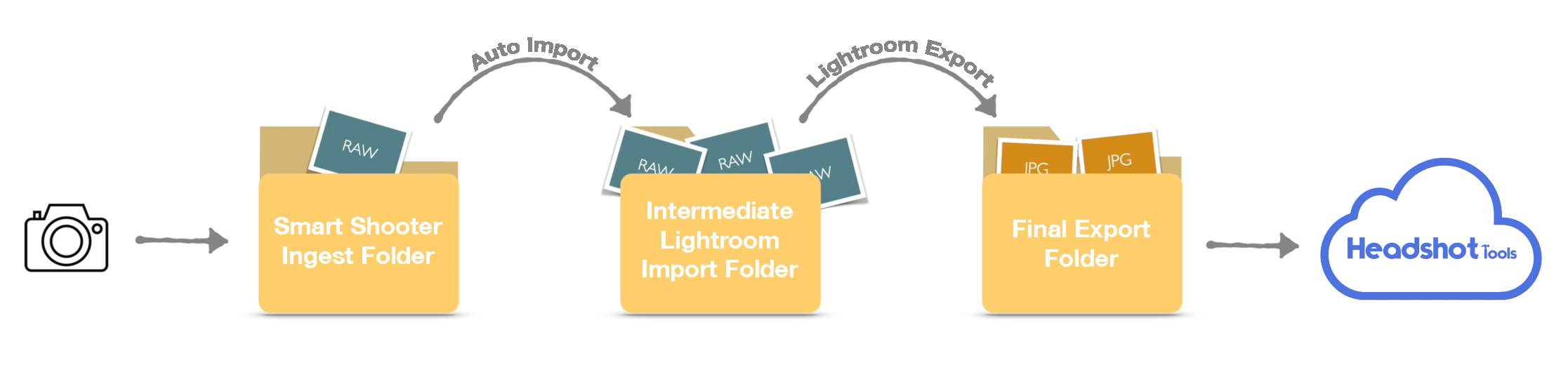 We just did a lot in this guide, so let’s go through a little recap of what’s really happening here from a top-down perspective.
- Step 1 – Headshot Tools will load your clipboard with a file prefix upon double-clicking a name in the Dashboard’s queue interface.
- Step 2 – You start photographing that participant.
- Step 3 – As you’re shooting, Smart Shooter will be ingesting your camera’s images, automatically renaming them with the Headshot Tools prefix, as well as any other information you set up. These files will be deposited into the “Smart Shooter Ingest Folder”.
- Step 4 – As soon as Smart Shooter deposits a file into the “Smart Shooter Ingest Folder”, Lightroom will automatically see that file and Auto-Import it into the “Intermediate Lightroom Import Folder”.
- Step 5 – Lightroom will now display the Auto-Import images. You can modify these images as you see fit for exposure, crop, etc. in Lightroom.
- Step 6 – You now export these images from Lightroom using the “HeadshotTools” export preset we created earlier, outputting the files to the “Final Export Folder”. You do this using the “Export With Previous” command in Lightroom.
- Step 7 – Either now or earlier in the process, you can start the Headshot Tools Auto Upload utility. The utility will ask you to select a folder upon first loading it. You want to select the “Final Export Folder” because this will be where the edited and final headshots will be placed by Lightroom.
- Step 8 – Headshot Tools will automatically scan the “Final Export Folder” every 25 seconds, looking for new files. It will then automatically upload each file for you and instantly associate the file with the appropriate participant.
Common Issues
Do I need to do these setup steps every time?
Yes! We always recommend you perform the steps in this and the "Setting Up A Test Job" videos before each job you perform. These few minutes ensure you have a 100% successful job every time. We promise it's worth it!The clipboard contents will change while I'm shooting.
You need to disable "Universal Clipboard" or "Hand Off". This feature allows you to share the clipboard across all of your associated devices and some other device is copying to the clipboard while you're using the system.The "Export" menu item is greyed out.
To unlock the "Export" settings, simply import any image into your catalog.I'm experiencing intermittent tethering connectivity.
Please see our Tethering Best Practices here.I have Smart Shooter 5 or 6, how do I get setup?
See our Lightroom + Smart Shooter 5 or Lightroom + Smart Shooter 6 guides instead.