
Capture One - One Click Setup Help
How To Setup Capture One - One Click Setup - Mac Only
Our wonderful friends over at Capture One have built a brand-new feature specifically for Headshot Tools users! Included in the latest Beta version of Capture One for Mac is a new button that performs all the normal Headshot Tools / Capture One set up steps in a single click! Below is how to get started, but first two items to note: Mac Capture One Beta Only
This feature is currently only within the latest Beta version of Capture One for Mac. To learn more about becoming a Capture One Beta Tester click here.
This feature is currently only within the latest Beta version of Capture One for Mac. To learn more about becoming a Capture One Beta Tester click here.
Custom Workspace Users
This setup process will automatically apply a new Headshot Tools workspace to your Capture One installation. If you've made any prior workspace customizations, please save them as a custom workspace before running this setup. You can restore them later if needed.
This setup process will automatically apply a new Headshot Tools workspace to your Capture One installation. If you've made any prior workspace customizations, please save them as a custom workspace before running this setup. You can restore them later if needed.
Step 1 – Launch
Open Capture One and close any open windows. Next in the top middle of the screen, click “Scripts” > “Headshot Tools Setup”, then “Continue”.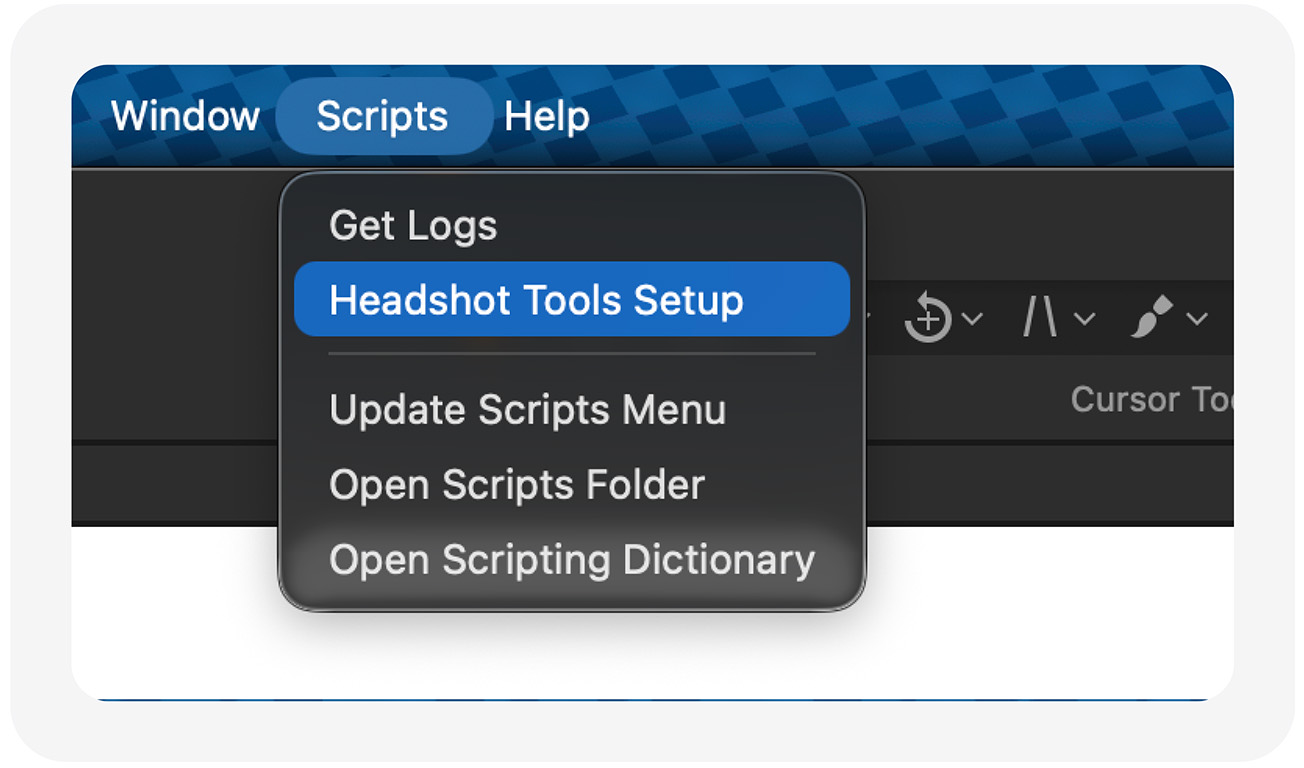
Not seeing “Headshot Tools Setup”? This feature is currently only available in the Beta version of Capture One specifically for Mac installations but you can use the normal setup instructions found here instead.
Step 2 – Name Your Session
Enter the name of your new Capture One Session. You can choose any name you like for this session. It can be helpful to name the session similarly to what you’ll eventually name your job in Headshot Tools later. Once entered, click “Continue”.Step 3 – Set You Session Location
Now select a folder where you normally organize your images and click “Choose”. Please make note of this location. We'll need it later. Once complete, you can click “Done”.Next Step: Now that you're set up, you need to watch the next video "Setting Up A Test Job". This will show you how Headshot Tools and Capture One work together!
What Is This Setup Doing?
This setup procedure is performing the standard Capture One setup steps found in our existing setup page and video. These steps include:- Creating a new session and naming it.
- Applying the appropriate Next Capture Naming tokens.
- Setting up your Export Recipe.
- Applying a Headshot Tools workspace to Capture One, setup with the most commonly needed items.
Common Issues / Questions
I’m not seeing “Headshot Tools Setup” in the Scripts menu!
This feature is currently only available in the latest Beta version of Capture One specifically for Mac installations but you can use the normal setup instructions found here instead!Do I need to do this setup every time?
Yes! We always recommend you perform the steps in this and the "Setting Up A Test Job" videos before each job you perform. These few minutes ensure you have a 100% successful job every time. We promise it's worth it!My images are showing up sideways in Headshot Tools.
Please double check the folder you selected for uploading via the Auto Upload Utility. This behavior is typical when uploading from the "Capture" folder in Capture One. Please select the "Output/Headshot Tools/" folder. The "Output/Headshot Tools/" folder is where your exported images are placed. You can see more about this issue here!I'm experiencing intermittent tethering connectivity.
Please see our Tethering Best Practices here.The clipboard contents will change while I'm shooting.
You need to disable "Universal Clipboard" or "Hand Off". This feature allows you to share the clipboard across all of your associated devices and some other device is copying to the clipboard while you're using the system.